


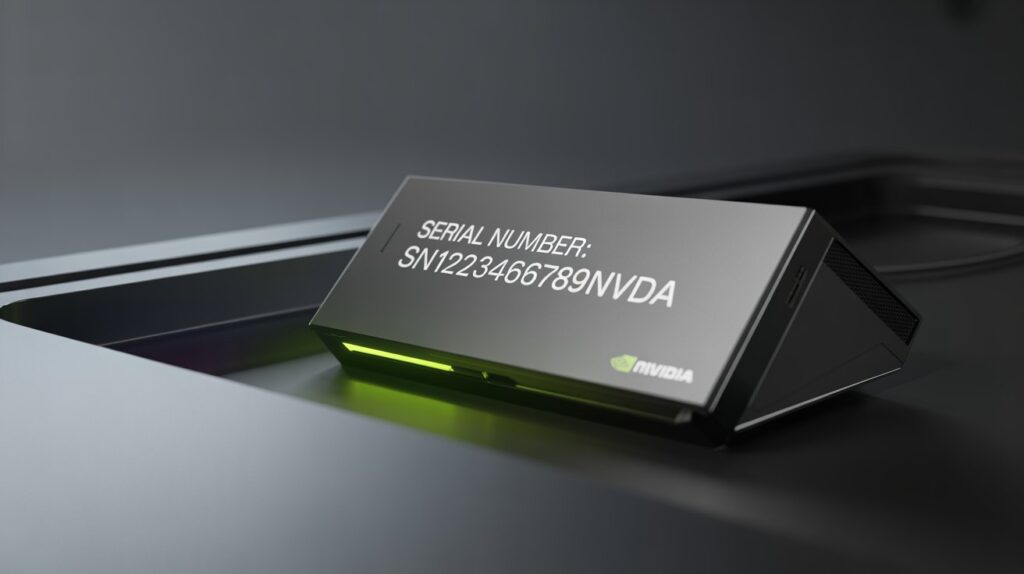
If you own an NVIDIA Shield, knowing how to find and use your serial number is essential for support, warranty claims, and device management. This guide explains what the NVIDIA Shield serial number is, where to find it, and why it matters.
What Is an NVIDIA Shield Serial Number?
The serial number is a unique identifier assigned to every NVIDIA Shield device. It helps distinguish your device from others and is often required for:
- Warranty verification
- Customer support
- Device registration
- Troubleshooting issues
Each Shield device—whether it’s the Shield TV or Shield TV Pro—has its own distinct serial number.
Where to Find Your NVIDIA Shield Serial Number
You can locate your serial number in several ways:
1. On the Device Itself
Check the physical body of your Shield device. The serial number is usually printed on a label on the bottom or back.
2. In System Settings
Follow these steps:
- Turn on your NVIDIA Shield
- Go to Settings
- Select Device Preferences
- Click About
- Look for Status
Here, you’ll find the serial number listed clearly.
3. On the Original Packaging
If you still have the box, the serial number is typically printed on a sticker along with a barcode.
What Does the Serial Number Look Like?
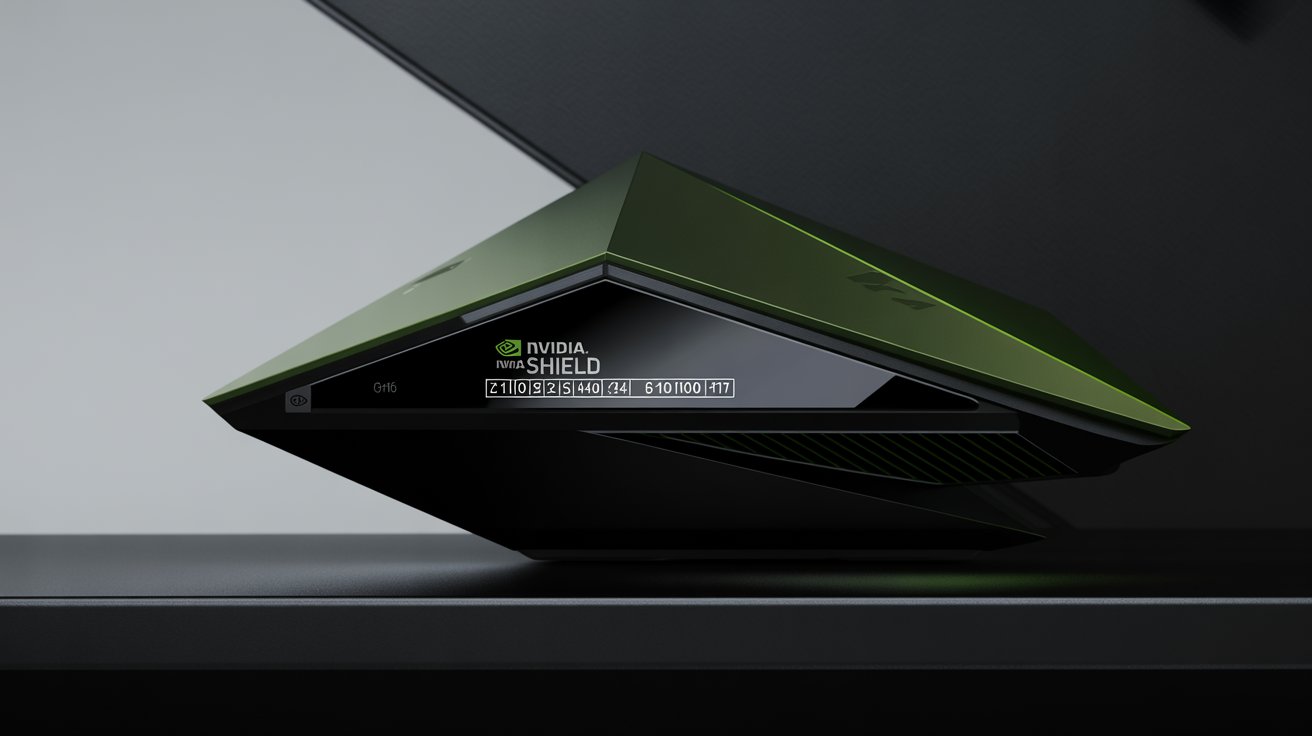
An NVIDIA Shield serial number is usually:
- A combination of letters and numbers
- Around 12–16 characters long
- Unique to your specific device
Example format:
Why the Serial Number Is Important
Your serial number plays a key role in managing your device:
Warranty & Repairs
When contacting NVIDIA support, you’ll need your serial number to verify warranty status and eligibility for repairs or replacements.
Software & Updates
In some cases, serial numbers are used to track device eligibility for updates or beta programs.
Theft or Loss Recovery
Keeping a record of your serial number can help identify your device if it’s lost or stolen.
Tips to Keep Your Serial Number Safe
- Take a photo of the label and store it securely
- Write it down in a safe place
- Avoid sharing it publicly to prevent misuse
Common Issues and Troubleshooting
Serial Number Not Showing in Settings
- Restart your device
- Check for system updates
- Perform a factory reset (only if necessary)
Label Is Worn or Missing
If the physical label is unreadable, try checking the system settings or original packaging.
Conclusion
The NVIDIA Shield serial number is a small detail that plays a big role in managing your device. Whether you need support, want to check your warranty, or simply keep your device secure, knowing where to find your serial number is essential.